1. Open A Dataset
Page: Overview · Goal: know what the dataset contains before asking it anything.
Start the app and pick the dataset in the switcher at the top. The Overview is its summary page.
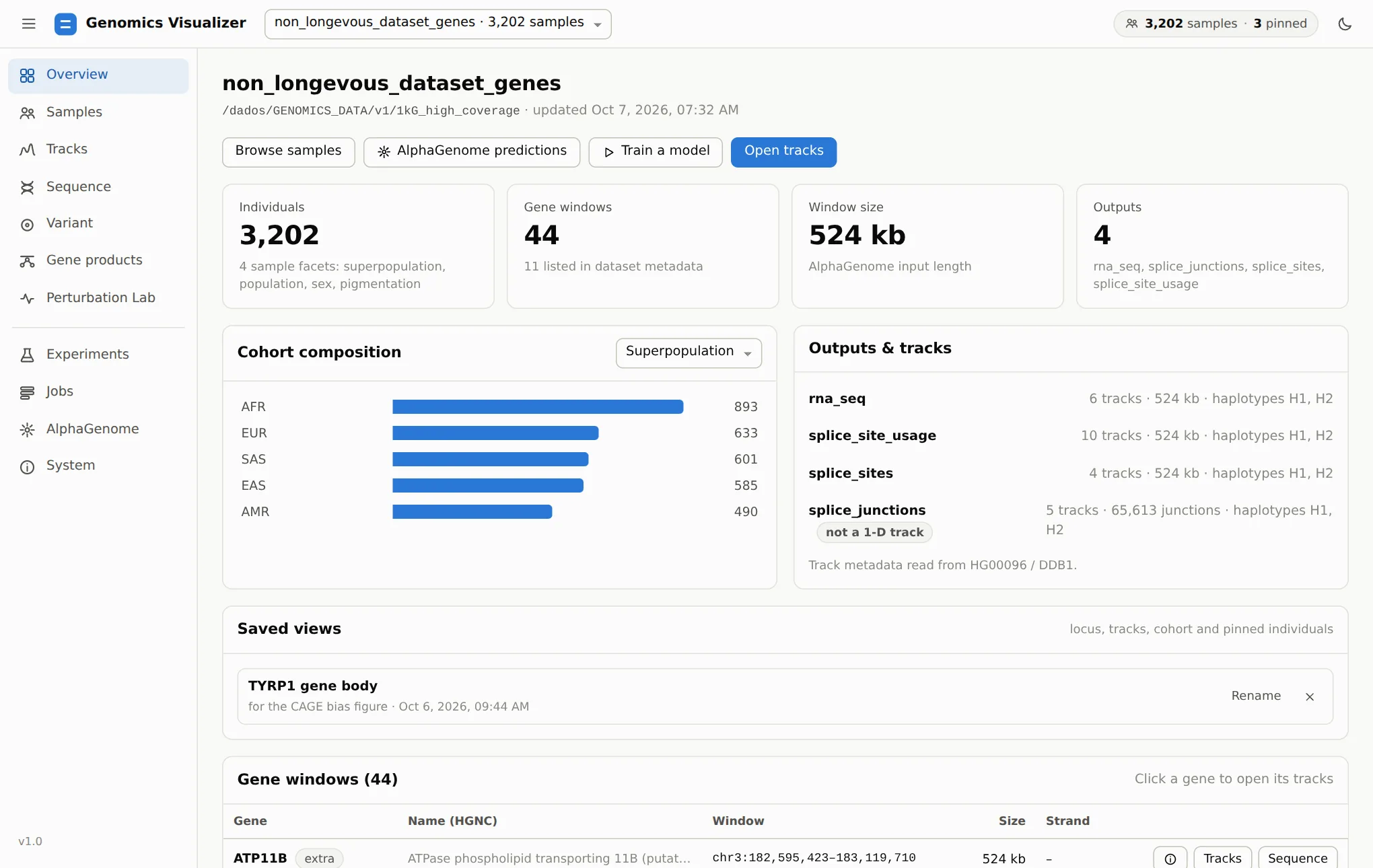
1kg_high_coverage: 3,202 individuals, 44 windows of 524 kb,
four AlphaGenome outputs.Read the summary cards
| Card | What it tells you |
|---|---|
| Individuals | Samples with data, and the sample facets: every column of the pedigree or of your metadata becomes a field to filter, group or train on (here superpopulation, population, sex, pigmentation) |
| Gene windows | How many windows there are, and how many are listed in the dataset metadata (the genes the dataset was built for). The rest are marked extra. In this dataset they are control genes |
| Window size | AlphaGenome's input length for every window |
| Outputs | Which AlphaGenome outputs have been predicted (here RNA-seq and three splicing outputs) |
Cohort composition counts the samples by any field. Outputs & tracks lists each output's
tracks and haplotypes. splice_junctions is not a 1-D track: it is a junction list, which the
Gene products page uses.
Look a gene up
The Gene windows table lists every window with its HGNC name and coordinates. Click a gene name, or the ⓘ button, to open its gene card:
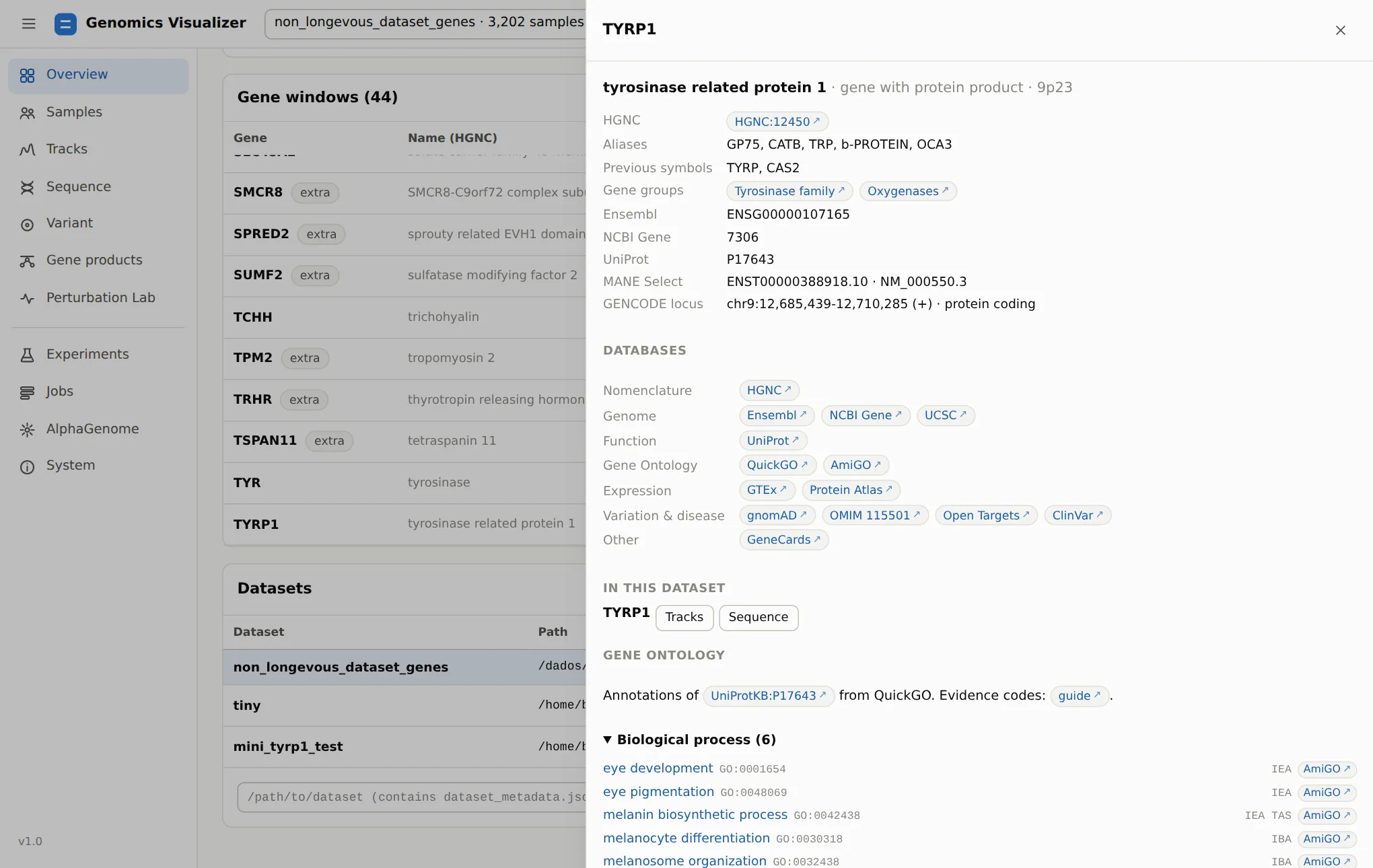
Gene cards open from every page that names a gene. They are the quickest way to go from a symbol to Ensembl, UniProt, GTEx, gnomAD, OMIM, ClinVar or Open Targets.
Come back to saved views
Saved views lists the views saved from the Tracks page. Each one stores a locus, its tracks and
their order, the display mode, the cohort filters and the pinned individuals. Clicking one restores
all of it. Saved views are kept on disk (~/.config/genomics/visualizer_sessions.json), so they
survive a cleared browser and move with the dataset path. You will save one in
step 3.
Open or switch datasets
Further down, Datasets lists every dataset the app knows. Paste the path of any directory with
a dataset_metadata.json to open it while the app runs. Imported datasets are added here
automatically. From the command line:
genomics visualize --dataset /path/to/dataset --open
genomics visualize --dataset-id 1kg_high_coverage --annotations phenotypes.tsv   # extra sample columns
Start work from here
The buttons under the title are shortcuts. Browse samples opens step 2, and Open tracks opens step 3. AlphaGenome predictions and Train a model open the forms described in step 9 and step 7.